Schedule a post
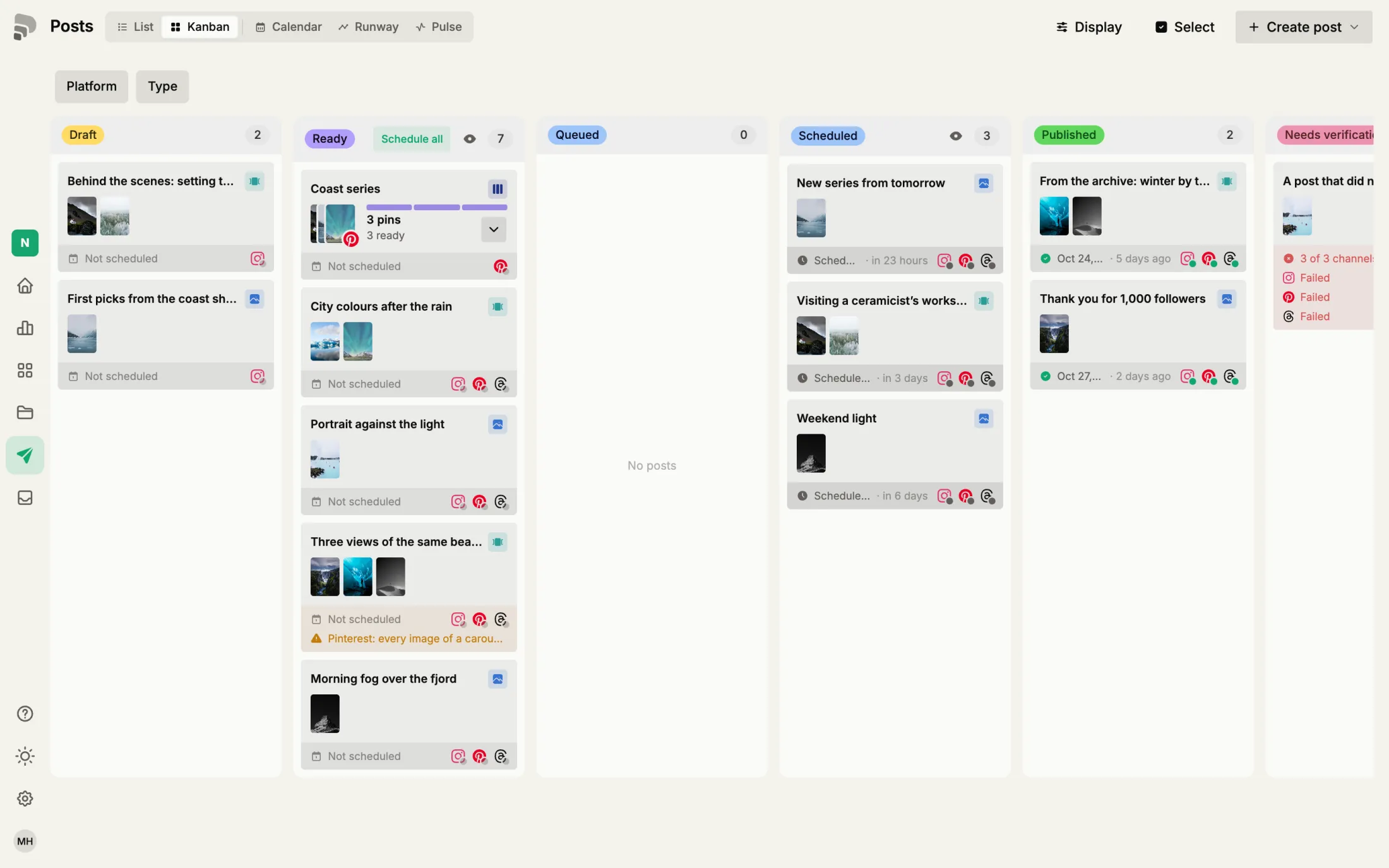
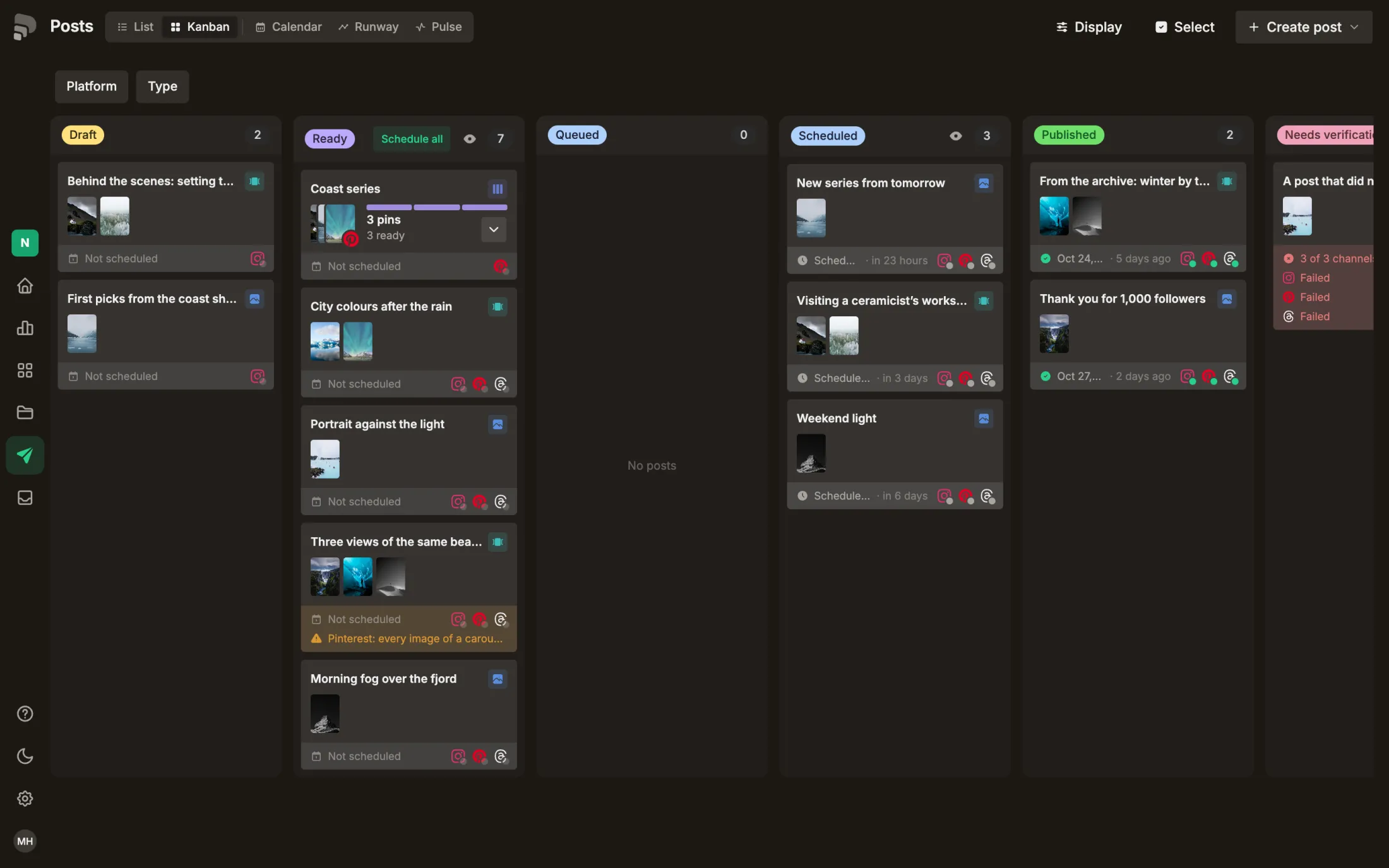
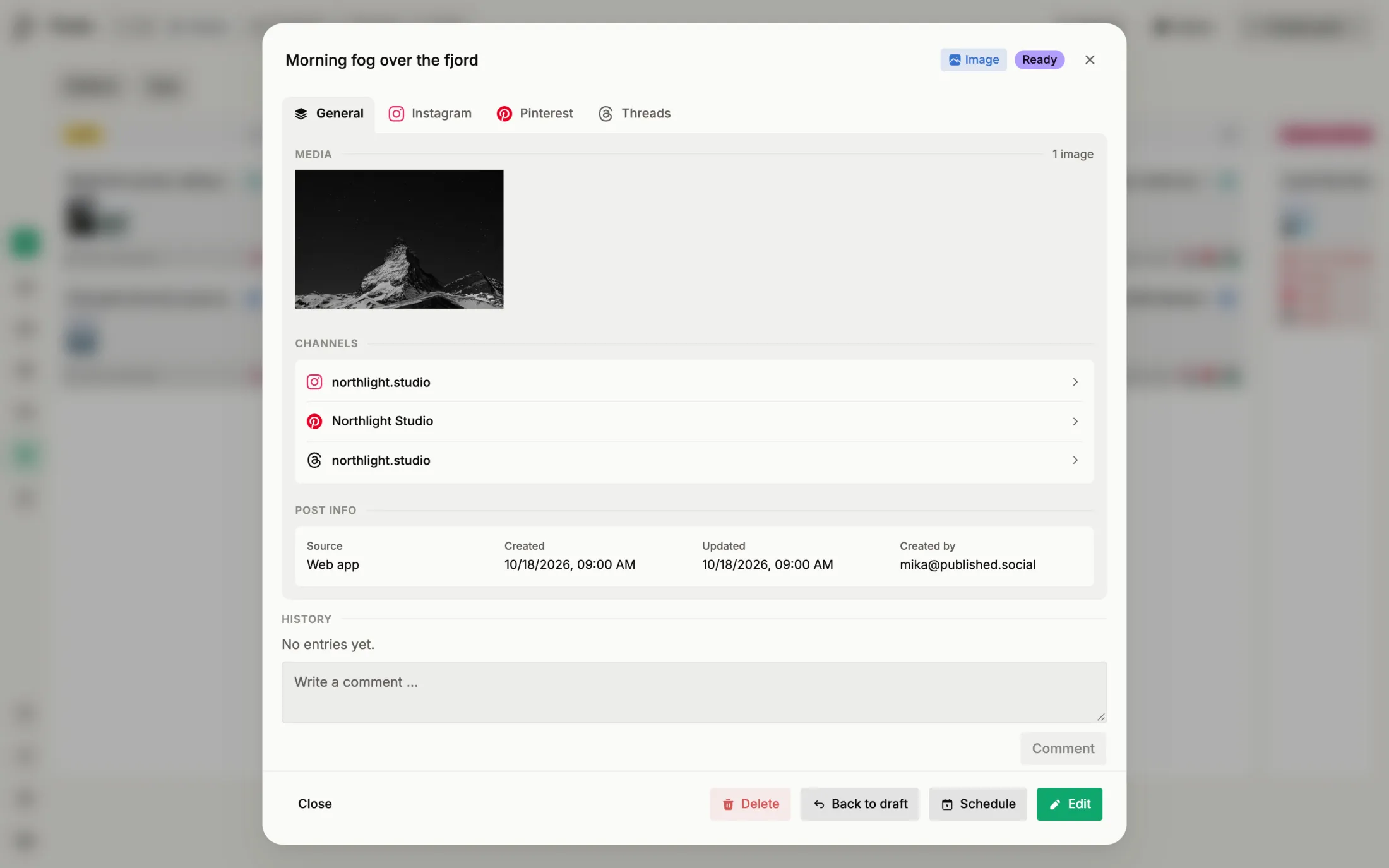
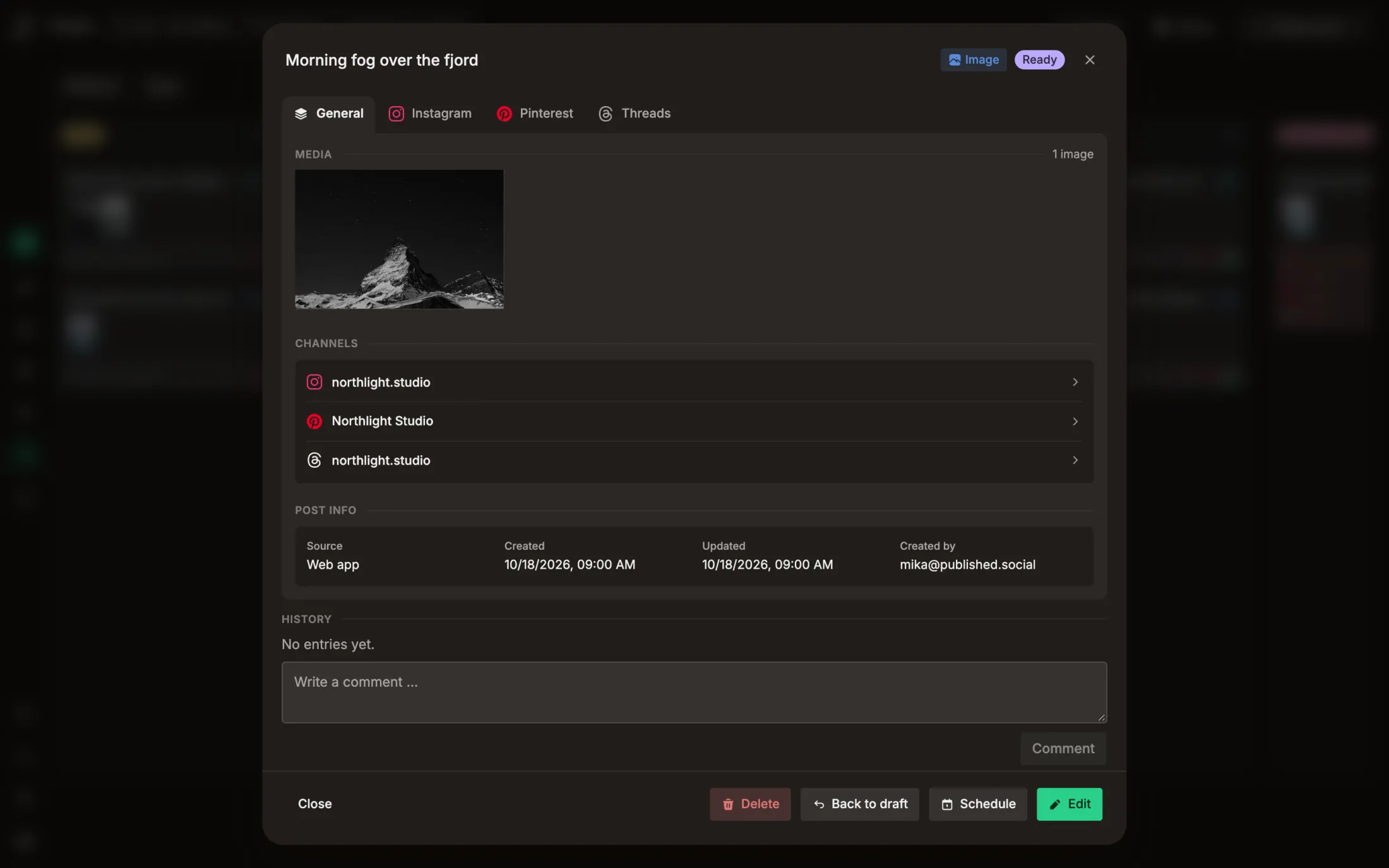
Give a ready post a date and time. Published then posts it on its channels by itself, even when your computer is off.
Before you start
- At least one channel is connected
- The post is in “Ready”Understand a post’s status →
Step by step
- 1
- 2
- 3
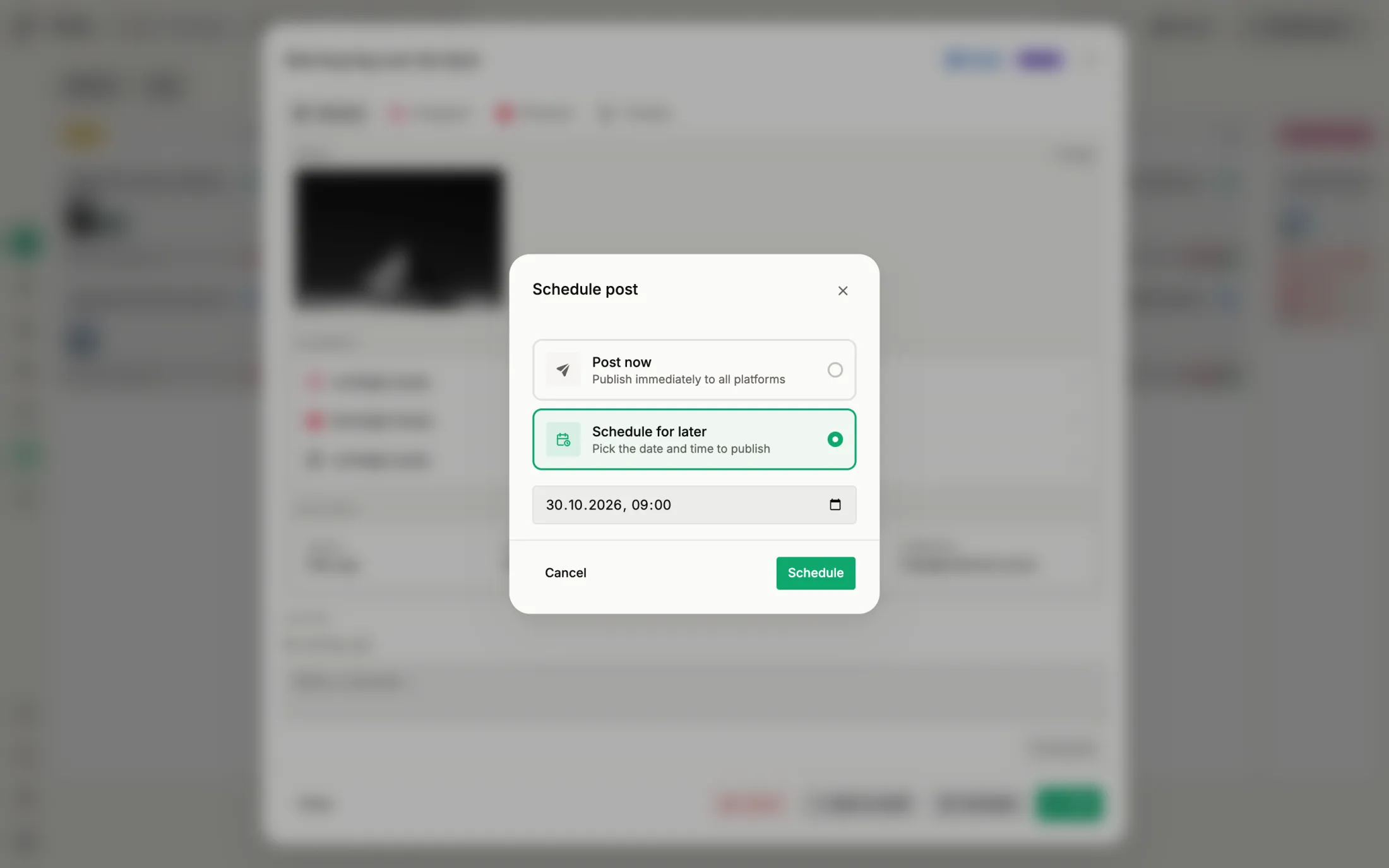
Pick date and time
Set when the post should go out. The time is in your brand’s time zone.
Background: Published posts from its servers, so the post goes out on time even when the app is closed.
- 4
Good to know
Can I still change a scheduled post?
Yes, until it goes out. Open it and choose “Reschedule”, or edit the text.
Not working?
All problems →“Schedule” is greyed out
Something the channels need is missing: text, an image or a connected account. Open the post, the reason is shown there.
“Schedule” is greyed out →Was this helpful?